
How Do I Securely Recycle an Old Computer or Phone?
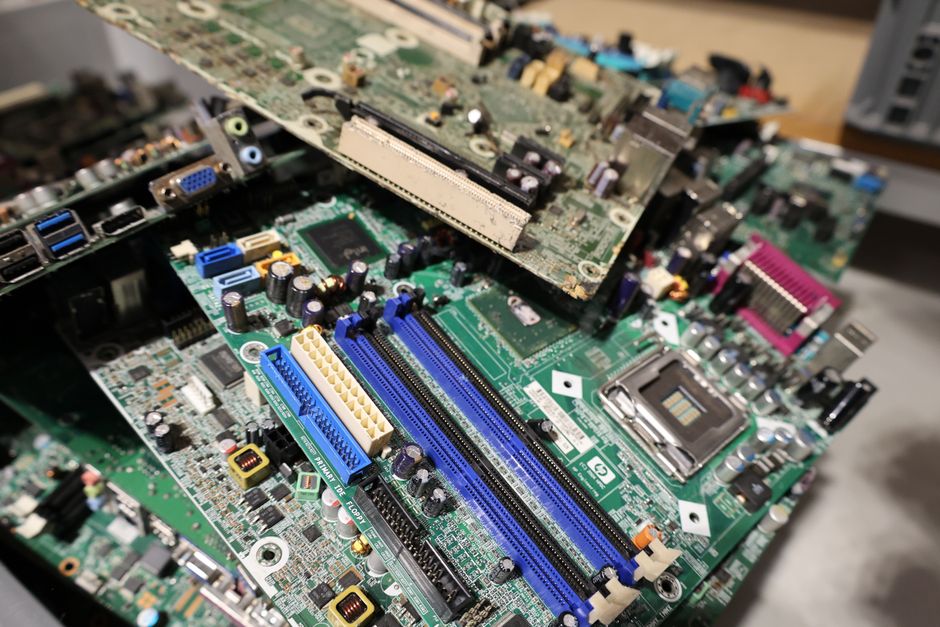
Before you sell, donate, trade in, or recycle a device, back up what you need, sign out of linked accounts, remove SIM and memory cards, use the device’s official erase or reset process, and choose a recycler with documented data-sanitization practices. If a computer will not start or its storage cannot be erased, remove the drive for secure destruction rather than assuming the device is safe.
The uncomfortable part is that an old device can look useless while its storage remains quite useful to someone else. In September 2025, NIST SP 800-88 Rev. 2 defined media sanitization as making access to target data infeasible for a given level of effort. That is a more useful standard than asking whether the screen still lights up.
Is a factory reset enough before I recycle an old phone or laptop?
A factory reset is the right baseline for a working phone or computer, but deleting individual files or emptying a trash folder is not enough. The FTC says to back up information, erase the hard drive, and then dispose of a computer; it also notes that operating systems include tools for erasing files and returning a computer to factory settings.
The distinction matters. CISA explains that moving files to the Windows Recycle Bin or the Trash on macOS, Android, or iOS merely permits later overwriting. It does not permanently remove the underlying data, and a person with the necessary expertise may recover portions of files or, in some cases, entire files.
For a working device, use the manufacturer’s reset flow rather than trying to manually delete photos, documents, browser history, and applications one by one. Manual deletion is tedious and incomplete. The official process is the cleaner route.
| Device | Before erasing | Erasure step | Physical items to remove |
|---|---|---|---|
| iPhone or iPad | Back up data; unpair an Apple Watch if applicable; sign out of Apple services | Use Erase All Content and Settings | SIM card; memory card if present |
| Android phone or tablet | Back up data; remove each Google account | Use System > Reset options > Erase all data | SIM card and memory card |
| Windows PC, Mac, or Chromebook | Back up files and sign out of services | Use the operating system’s official reset or erase procedure | External drives; remove internal storage if it cannot be erased |
| External drive or smart-home device | Check for saved files, account links, and app access | Use its documented reset process if available | Removable storage, if any |
Apple says its erase process removes Apple Pay cards, photos, contacts, music, and apps, and turns off services including iCloud, iMessage, and FaceTime. Apple also instructs people using eSIM to erase the device with its eSIM profile when that choice appears. For Android, Google Account Help says to back up data first, remove Google accounts, and then factory-reset the device.
One practical checkpoint helps prevent a common mistake: verify that the backup can be accessed before erasing the device. A backup that exists but cannot be opened is not much comfort after the reset is complete. If a trade-in is part of replacing a phone, the offer is only one part of the decision; this guide on calculating the true cost of an iPhone carrier deal can help put the handoff in its larger financial context.
What should I do if my old computer will not turn on so I cannot erase it?
If an old computer will not turn on, treat its internal storage as still readable and remove the SSD or hard drive for destruction when you cannot securely erase it. NIST identifies three sanitization methods: clear, purge, and destroy, and says destruction may be the only option when media has failed or is obsolete and clear or purge techniques cannot be applied.
This is where a dead screen can produce false confidence. A failed battery, display, power supply, or motherboard does not necessarily mean the drive has failed. Public sources do not provide a universal test for every device model, so the conservative process is simple: do not hand over a non-working computer with its storage inside unless the receiving organization can document how that media will be sanitized.
For a laptop or desktop, identify whether it uses an SSD or hard drive, remove it if you can do so safely, and keep it separate from the computer. If removal is not practical, use a professional destruction service that allows verification that the drive was destroyed, consistent with CISA’s disposal guidance. Do not rely on breaking the computer’s outer case; the storage media is the item that matters.
NIST’s wording is useful here: sanitization is not a vague feeling of safety. It is a process that makes access to target data infeasible for a defined level of effort. Keep any record provided by the recycler or destruction service. NIST says a valid sanitization program includes documentation or evidence of sanitization activities.
Should I remove an SSD or hard drive before donating a computer?
Remove an SSD or hard drive before donating a computer if you cannot confirm that it was securely erased or if the device cannot be powered on; otherwise, a successful official erase followed by a reputable recycler or recipient process may be appropriate. The decision is not about whether the computer is old. It is about whether the storage has been handled deliberately.
Think in four separate steps: keep your data, disconnect your identity, erase the storage, and document the handoff. The FTC notes that old computers may contain account numbers, tax returns, email, and photos. Those are different kinds of information, but they point to the same process problem: a new owner should receive a usable device, not access to the former owner’s records.
- Phones and tablets: Back up data, sign out, remove SIM and memory cards, and use the official erase process. The FTC’s phone guidance specifically says SIM cards may store personal information and should be removed; destroy one that will not be reused.
- Windows PCs, Macs, and Chromebooks: Back up files, sign out of services, use the official reset or erase tool, and remove storage if the computer cannot be erased.
- External drives: Do not confuse deleting folders with sanitizing the drive. Use a suitable erasure process or destruction service when the drive cannot be cleared.
- Smart-home equipment: Remove it from associated apps and accounts, use its reset process where available, and check for removable memory before recycling.
For a recycler, the worthwhile questions are plain ones: Which sanitization method do you use? Can you document it? Who has custody of devices after pickup? Can you provide a destruction record for removed storage? A vague answer is useful information. It means the handoff is not yet ready.
The EPA recommends certified electronics recyclers and identifies R2 and e-Stewards as the two accredited U.S. certification standards. According to the EPA, both programs use independent third-party auditors and require destruction of data on used electronics while assessing security and asset-management practices. Certification does not replace your own backup and sign-out steps. It gives the final disposal step a more accountable framework.
Frequently Asked Questions
Do I need to sign out of iCloud or Google before recycling a device?
Yes. Apple’s checklist says to sign out of iCloud, iTunes, and the App Store before using Erase All Content and Settings, while Google directs Android owners to remove Google accounts before factory-resetting a device. This helps separate the device from the former owner’s accounts before it reaches another person.
Can a recycling company recover my files after I delete them?
Potentially, yes. CISA says moving files to Recycle Bin or Trash does not permanently delete them, and someone with the necessary expertise may recover parts of files or sometimes entire files. Ask the recycler how it sanitizes storage and whether it can provide evidence of that work.
What should I remove from old electronics before recycling them?
Remove SIM cards and SD or other removable memory cards from phones and tablets, as the FTC recommends. For computers that cannot be securely erased, remove the SSD or hard drive; NIST says destruction may be the only option when failed or obsolete media cannot be cleared or purged.
The final process is intentionally unglamorous: backup, sign out, remove cards, erase, document, then hand over. That sequence does not depend on guessing whether an old device is truly dead. Follow it before the device leaves your control.
Sources
- National Institute of Standards and Technology: SP 800-88 Rev. 2
- Cybersecurity and Infrastructure Security Agency: Protecting Data on Old Devices
- Federal Trade Commission: How to Remove Personal Information From Your Phone
- Google Account Help: Prepare an Android Device for a New Owner
- U.S. Environmental Protection Agency: Certified Electronics Recyclers